Too many passwords? A calm, simple way to keep your business logins safe

Running a small business used to mean a till, a diary and a bank book. Now it usually means a list of online accounts: the bank, email, your website, Google Business Profile, Facebook, a booking system, an accounting app, a card reader, and perhaps a supplier portal or two. Each one wants a password, and many of them want you to change it from time to time.
It is no surprise that many owners I speak to use the same password for almost everything, or keep them on a sticky note by the till. I understand why. But it means that if one of those accounts is ever caught up in a data leak, the same password can open the others. The good news is that putting this right is not complicated, and you do not need to become a computer expert to do it.
Step one: write down what you actually have
Before changing anything, make a simple list of every account the business uses. Just the name of the service and the email address you sign in with. Do not write the passwords on this list.
Start with the ones that matter most: your business email, your bank, anything that takes payments, and your website. Your email comes first because it is the key to everything else. If someone can get into your inbox, they can usually press "forgot password" on your other accounts and reset them.
Step two: let a password manager remember them for you
A password manager is a small, secure app that stores your passwords for you, on your phone and computer. You remember one strong main password, and it fills in the rest when you sign in. It can also make up long, random passwords for each account, so no two are the same.
You may already have one without knowing it. Apple devices have a built-in Passwords app, and Google Chrome and Android can save passwords to your Google account. There are also separate password manager apps that work across all devices. I will not quote prices, because they change, and some options are free. Choose one that works on the phone and computer you already use, and stick with it.
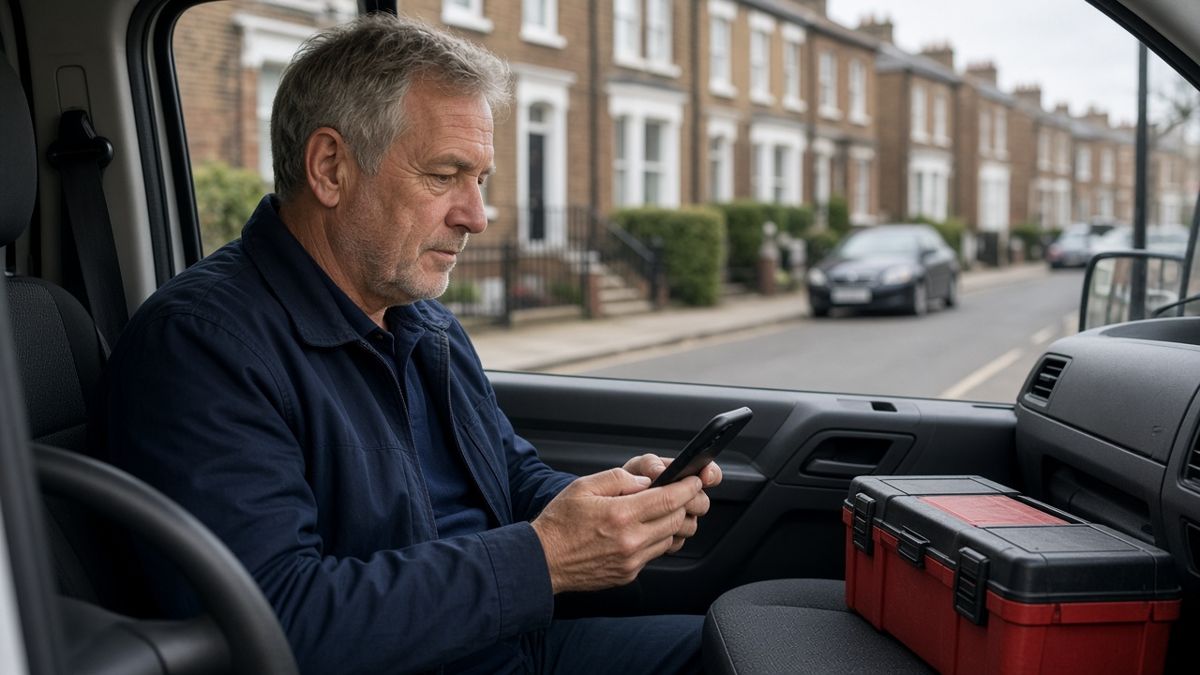
For your one main password, the UK's National Cyber Security Centre suggests joining three random words together, such as three things you can picture but that have nothing to do with you or your business. It is long, which makes it hard to guess, but easy for you to remember.
Step three: turn on two-step sign-in for the important accounts
Two-step sign-in (sometimes called two-factor authentication, or 2FA) means that after you type your password, the service asks for a second check, usually a short code sent to your phone or shown in an app. Even if someone learns your password, they cannot get in without your phone as well.
Turn it on first for your email, then your bank and payment accounts, then your social media pages. Look in each account's settings under "Security" or "Sign-in". It takes a few minutes per account, and you only need to do it once.
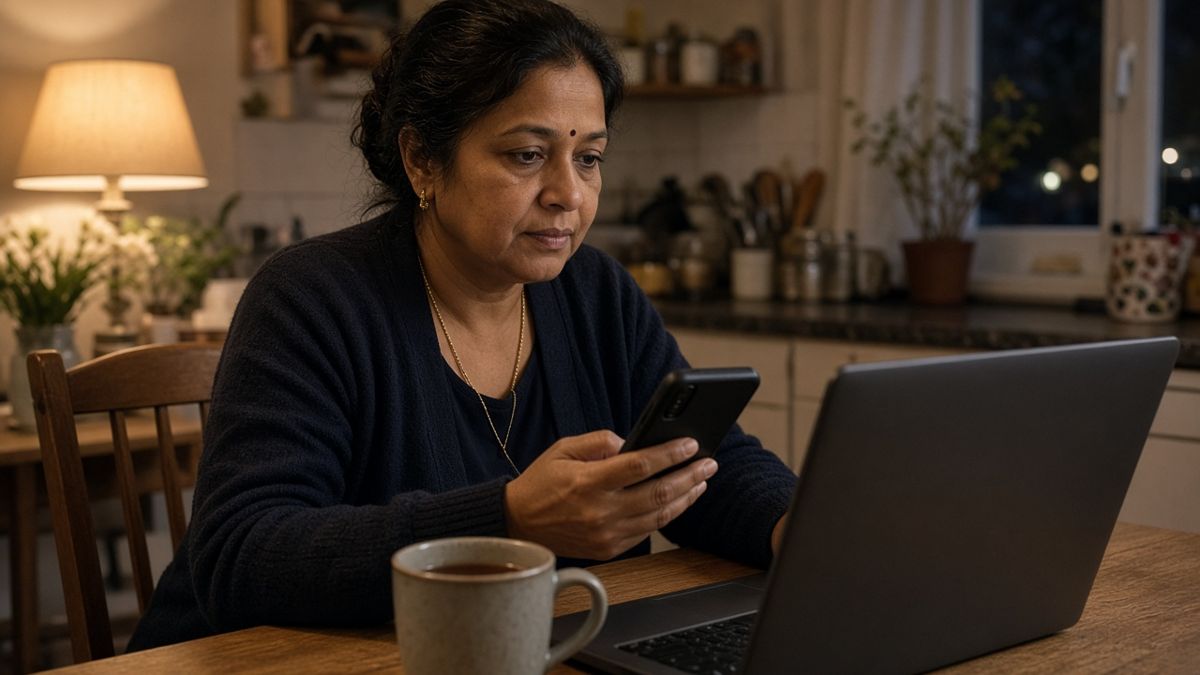
One gentle warning: a genuine company will never phone, text or email to ask you for one of these codes. If anyone asks you to read out a code, even if they sound official, hang up and contact the company yourself using the number on their website or your card.
Step four: decide who else can get in
If a family member, a helper or a freelancer looks after part of your business online, give them their own login where the service allows it, rather than sharing yours. Facebook pages, Google Business Profile and most booking systems let you add another person with their own access. When they stop helping, you simply remove them, and nothing else has to change.
It is also worth telling one trusted person where your important accounts are and how they could be reached in an emergency. That might be a sealed note kept somewhere safe, or the emergency access feature that some password managers offer.

A small job you can do this week
You do not have to fix every account in one go. This week, list your accounts, set up a password manager, and turn on two-step sign-in for your email. Next week, do your bank and payments. Little by little, the sticky notes can go in the bin, and you will feel calmer each time a login screen appears.
Would you like a hand?
If you would like someone to sit with you while you set up a password manager or turn on two-step sign-in, you can book a free discovery call and we can go through it together. Or, if you would rather explore on your own first, my free AI starter kit is a gentle place to start.