Your website on a phone: five quick checks for when customers cannot find your number

When you built your website, you probably looked at it on a computer. It may look lovely there. But many of your customers will never see that version. They will find you on their phone, standing at a bus stop, sitting in the car or waiting for the kettle to boil, and they will want one thing: to ring you, message you or book.
If your number is hidden at the bottom of a long page, or too small to tap, some of those people will simply give up and call someone else. The good news is that you do not need any technical knowledge to check this. You only need your own phone and about ten minutes.
Check one: can you see how to contact you straight away?
Open your website on your phone, just as a customer would. Do not scroll yet. Look at what fills the screen first.
Can you see your phone number, a "Call" button or a "Book" button without moving anything? If the first thing you see is a large photo and a welcome message, a busy customer may not get any further.
Ideally, a way to contact you should be near the top of every page, not only on a separate "Contact" page. Many website builders let you add a small bar or button at the top for exactly this.
Check two: does your number work when you tap it?
Now tap your phone number. On a well set-up site, your phone will offer to call it straight away.
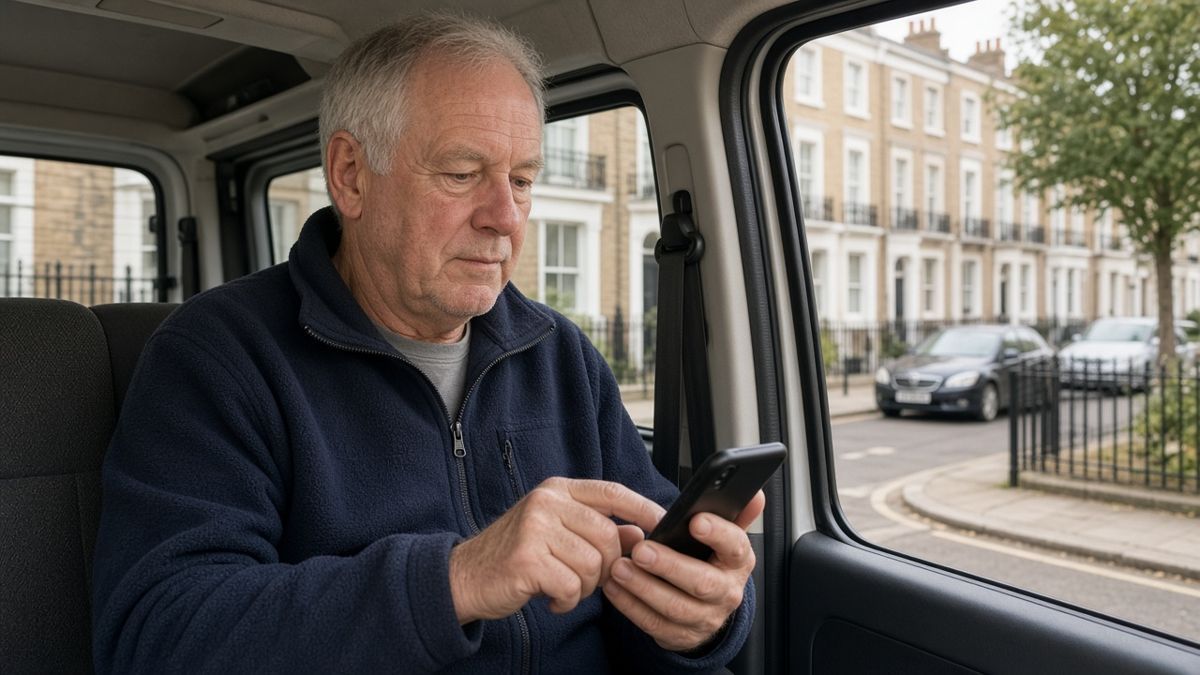
If nothing happens, your number has been typed in as plain text, or worse, it is part of a picture. That means a customer has to remember it, or write it down, and then type it in themselves. Fewer people will bother.
The fix is usually small. In most website builders, you highlight the number and add a link to it, choosing the "phone" option. If you are not sure how, the help pages for your website builder will usually explain it in a few lines. Do the same for your email address and your WhatsApp, if you use it, so each one opens the right app when tapped.
Check three: can you read it without zooming in?
Hold your phone at a normal distance, with your usual glasses if you wear them. Can you read the text comfortably? Many of your customers will be around your own age, and small, pale grey writing on a white background is hard work for anyone.
Look out for:
- Text that is too small to read without pinching the screen.
- Light text on a light background, or dark text on a busy photo.
- Buttons so close together that you tap the wrong one.
If anything makes you squint, it will make your customers squint too. Most builders let you make the text a little larger and the colours stronger.
Check four: are your opening hours and address easy to find?
People often look you up on the way to you. They want to know whether you are open now and where to go. Scroll through your home page and see how long it takes to find your opening hours and your address or area.
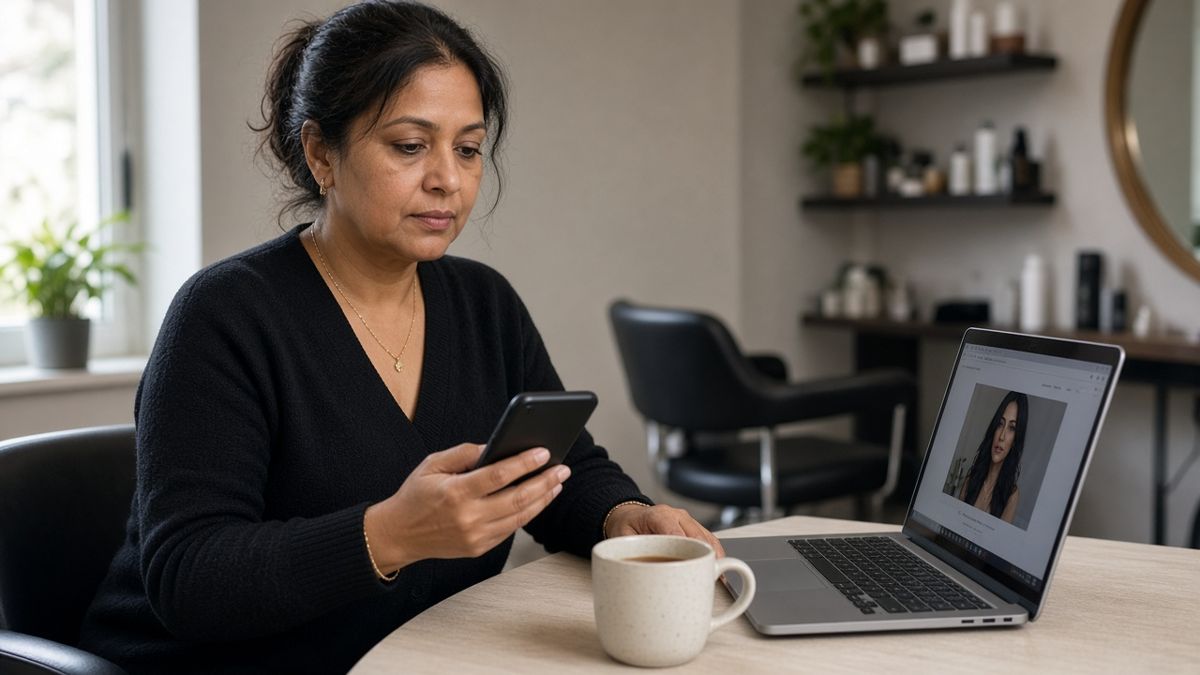
If you have to hunt for them, move them higher up, or add them to the footer at the bottom of every page. Check that they match your Google Business Profile too. If one says you close at five and the other says six, customers will not know which to trust. And if you have changed your hours for the winter or for Christmas, update both on the same day.
Check five: ask someone else to try it
You know your website too well to see it fresh. So ask a friend, a family member or a regular customer to do a small test on their own phone. Give them one task, for example: "Find my number and pretend to ring me", or "See if you can book an appointment for next Tuesday".

Then simply watch, without helping. Where do they pause? What do they tap that does not work? Do they give up? Ten minutes of watching someone else will show you more than an hour of looking yourself. It is worth trying with an older phone or a smaller screen too, if someone you know has one.
Make a short list, then fix one thing at a time
Write down what you noticed in a notebook or on your phone. You do not have to fix everything today. Start with whatever stops people getting in touch, which is usually check one or check two, and work through the rest when you have a quiet moment. Then look again every few months, or whenever you change something on your site.
Would you like a hand?
If you would like someone to look over your website on a phone with you, or to set up tap-to-call and booking buttons, you can book a free discovery call and we can go through it together. Or, if you would rather start on your own, my free AI starter kit has plenty of simple ideas.